How to Download Skool Course Videos (Free, Step-by-Step Guide)
Learn how to download Skool course videos to your computer as MP4 files — Skool native, Loom, Vimeo, YouTube, and Wistia. A free, step-by-step guide for Chrome, Edge, Brave, and Opera.
If you've paid for a Skool community and gone looking for a download button on a lesson, you already know the answer: there isn't one. Skool gives creators control over their content, which is great for them and frustrating for you when you want to study on a flight, keep a course before your membership lapses, or just have an offline copy of something you paid for. This guide walks through exactly how to download Skool course videos as clean MP4 files — for free, entirely in your browser.
Why Skool doesn't have a download button
Skool doesn't host video itself. A classroom lesson might use Skool's own native player (backed by Mux), or it might just be an embedded Loom, Vimeo, YouTube, or Wistia player dropped into the lesson page — the creator picks whichever tool they already use. Every one of those sources streams video in small adaptive chunks rather than serving one file, and right-clicking any of them gets you nothing.
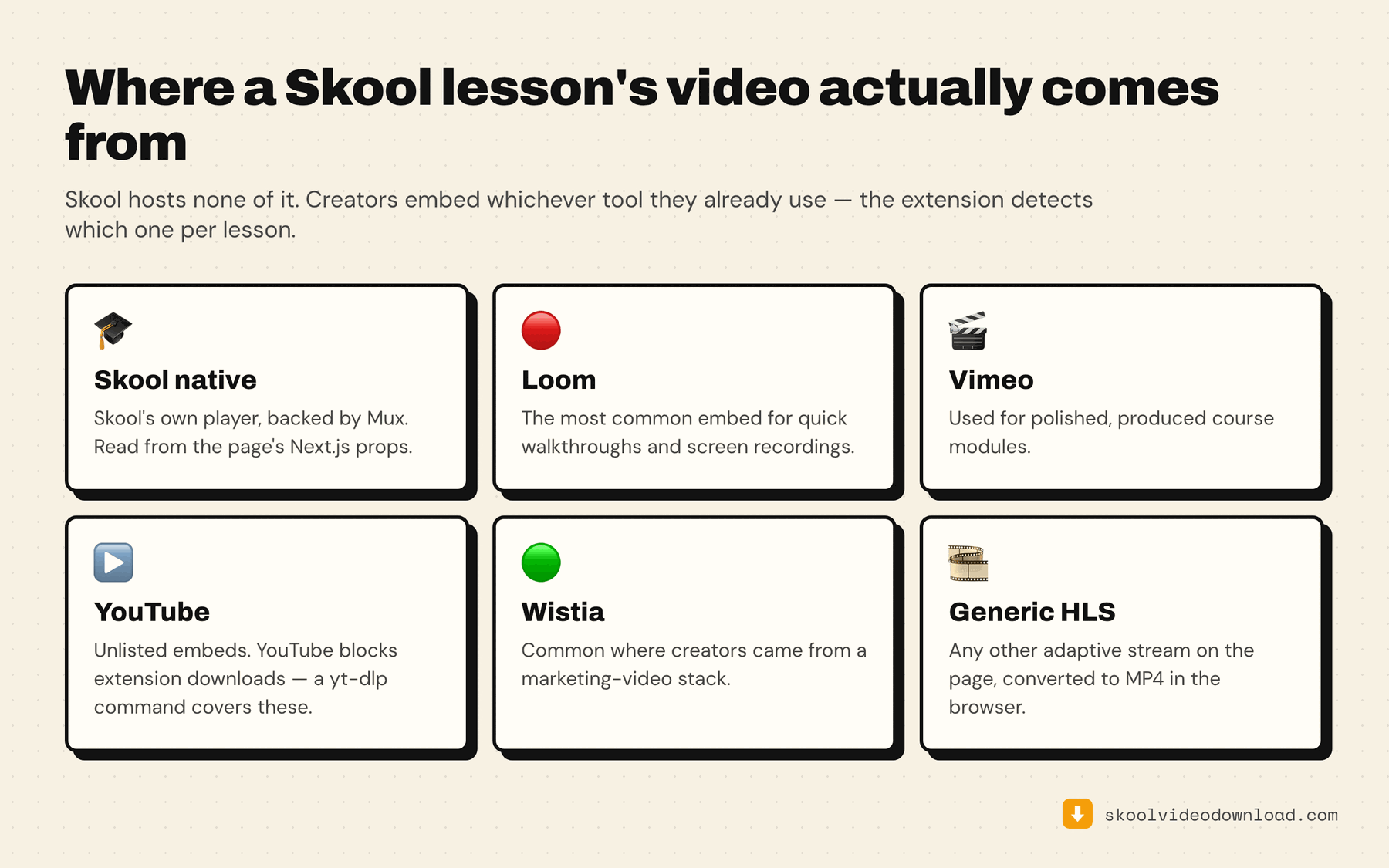
The free Skool Video Downloader is built around that reality. It reads Skool's own page data to figure out which platform a lesson is actually using, pulls the stream from the right one, and converts it into a normal MP4 — entirely inside your browser tab.
What you need before you start
- A Chromium-based browser. Chrome, Edge, Brave, or Opera. Safari and mobile browsers aren't supported — there's a longer explanation of why iPhone and Android can't do this if you were hoping to download on a phone.
- Access to the lesson. You need to already be able to play the video — logged into the community, with whatever access you purchased. The extension can't bypass paywalls or unlock content you don't have permission to view.
- The extension installed. Add it from the Chrome Web Store — free, no signup, no credit card.
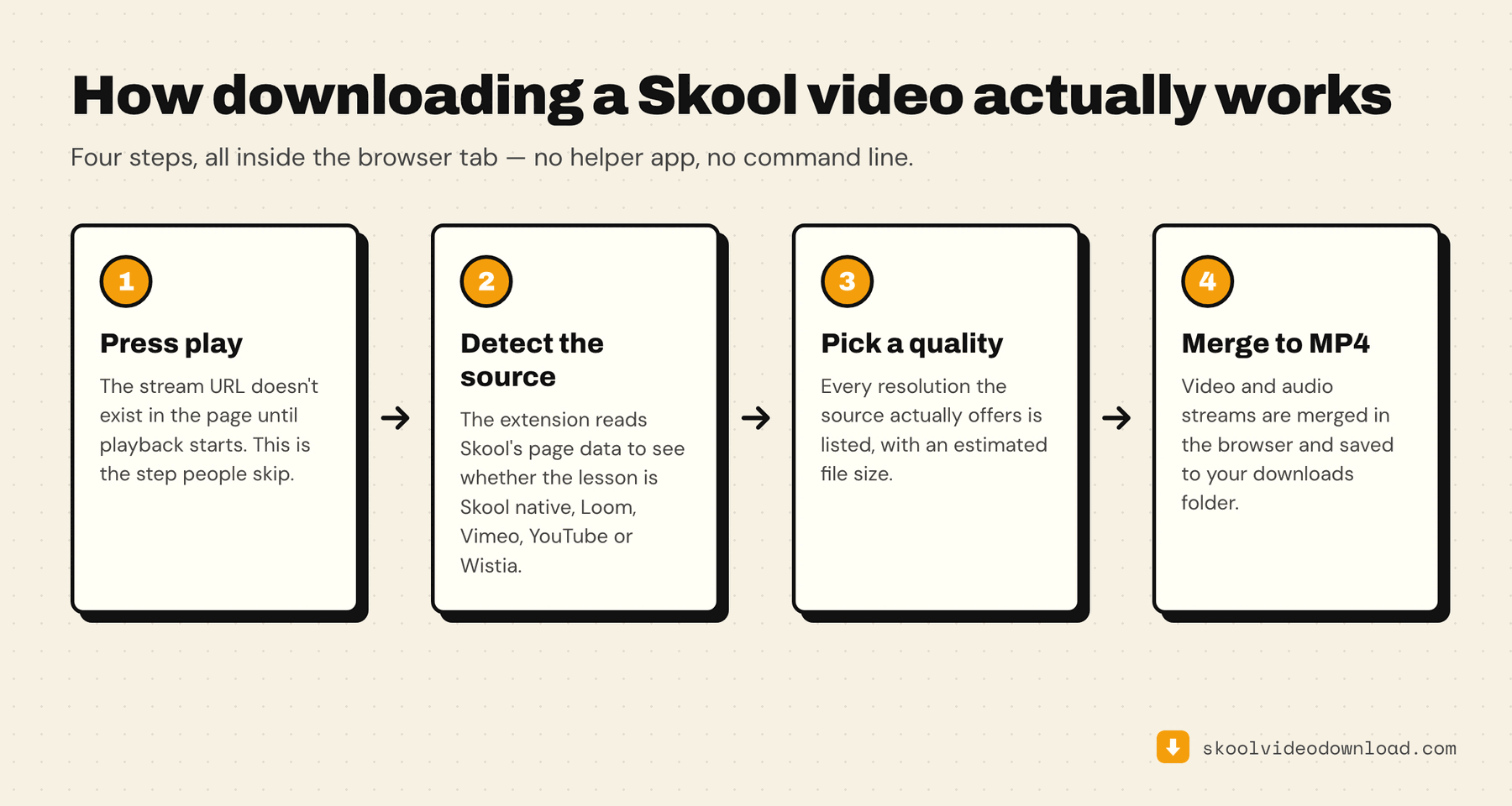
That's it. There's no helper app to install and nothing to run in a terminal — the video and audio streams are merged into an MP4 right in the browser tab.
How to download Skool course videos: step by step
Step 1 — Install the extension
Add Skool Video Downloader from the Chrome Web Store and pin it to your toolbar. You get 5 free downloads every week right away — no account needed.
Step 2 — Open the lesson and press play
Go to the classroom, community post, about page, or course module with the video you want. Press play — this is the step people skip. The stream data for the lesson (whether it's Skool native, Loom, Vimeo, YouTube, or Wistia) only loads once playback actually starts.
Step 3 — Open the extension and pick a quality
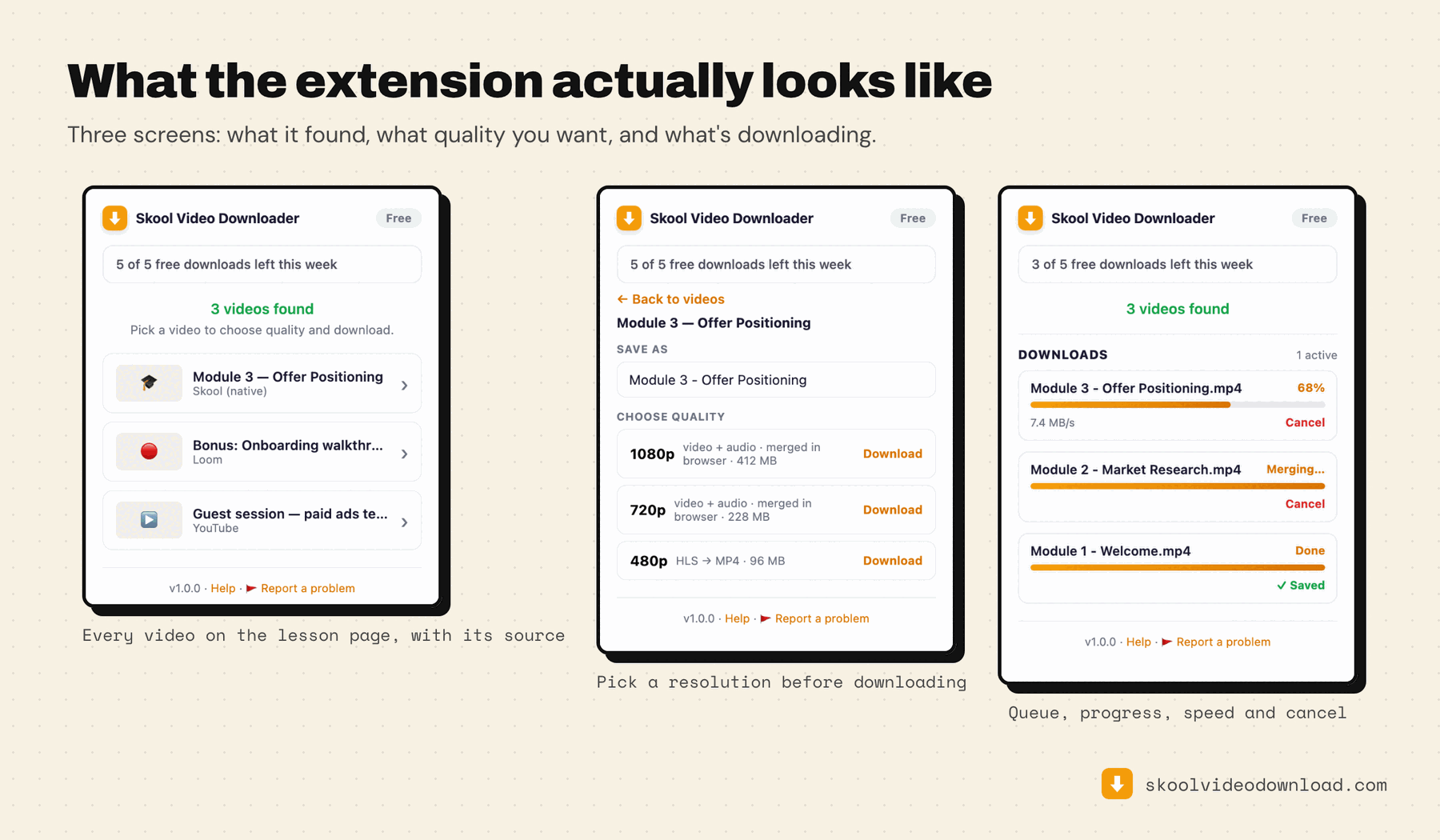
Click the extension icon. It auto-detects which platform the video is coming from and lists every resolution available for that lesson — no guessing which service is behind the embed.
Step 4 — Download and let it convert
Click download. The extension fetches the stream and converts it into a standard MP4 right in your browser — no external tools, no command line. Progress, speed, and a cancel button are all visible in the download manager panel.
Step 5 — Find your file
The MP4 lands in your downloads folder, named after the lesson title, ready for offline viewing or archiving.
Downloading from multiple platforms in one course
Most Skool communities aren't consistent about which video tool they use — one module might be Skool native, the next might be a Loom recording, and a guest lecture might be a YouTube embed. You don't have to figure out which is which. The extension detects the platform automatically per lesson, so the workflow is identical no matter what's behind the embed: press play, open the extension, pick a quality, download. The one exception is YouTube, which blocks downloads from every browser extension — those lessons need one free copy-paste command instead.
Queueing several lessons
You can queue as many downloads as you like and they run one after another, each with its own progress bar in the download manager. Open a few lesson tabs, press play on each, and add them all to the queue — useful if you're backing up a whole module in one sitting.
Troubleshooting quickly
Extension shows nothing? Almost always you haven't pressed play yet. The stream doesn't exist in the page until playback starts. Press play, wait a second, then open the extension.
- No video detected — press play first, then open the popup.
- Only low resolutions showing — that's what the creator actually uploaded, not a limitation of the extension.
- Private or member-only lessons — these work as long as you're logged into Skool; the extension uses your existing session.
- Live sessions — can't be captured while live. Wait for the recording to post.
If none of those match what you're seeing, every failure mode is worked through in order here. Platform-specific walkthroughs also exist for Mac and Windows, and there's a separate guide for backing up an entire course at once.
Is it really free?
Yes, and more genuinely free than most people expect. Every user gets 5 free merged downloads every week, forever — no signup, no credit card, no expiry. Pro removes the weekly cap for unlimited downloads. Try the free tier first at Skool Video Downloader.
Frequently asked questions
Save your Skool videos offline today
Install the extension, open a lesson, press play, pick a quality, download. It works the same way whether the lesson is Skool native, Loom, Vimeo, YouTube, or Wistia, and the free tier covers most people for good.