How to Download Skool Videos on Mac (Free, No Terminal Needed)
Step-by-step guide to downloading Skool course videos on a Mac as MP4 files. Covers the browser extension method for Skool native, Loom, Vimeo, YouTube, and Wistia — no Gatekeeper prompts, no helper app.
Mac users usually run into one specific headache with browser downloader tools: macOS Gatekeeper blocking a helper app the tool needs to merge video and audio. Skool Video Downloader doesn't have that problem — there's no separate app to install at all. The whole process, including converting adaptive streams into an MP4, runs inside the browser extension.
This guide walks through downloading Skool videos on Mac from a cold start, plus the couple of Mac-specific things worth knowing.
What you need
- A Mac running macOS 12 Monterey or later
- Chrome, Edge, Brave, or Opera (Safari isn't supported — more on why below)
- Access to the Skool video you want to download
If you're new to this, the general step-by-step guide to downloading Skool course videos covers the same ground without the Mac specifics.
Downloading on Mac: step by step
Step 1 — Install the extension
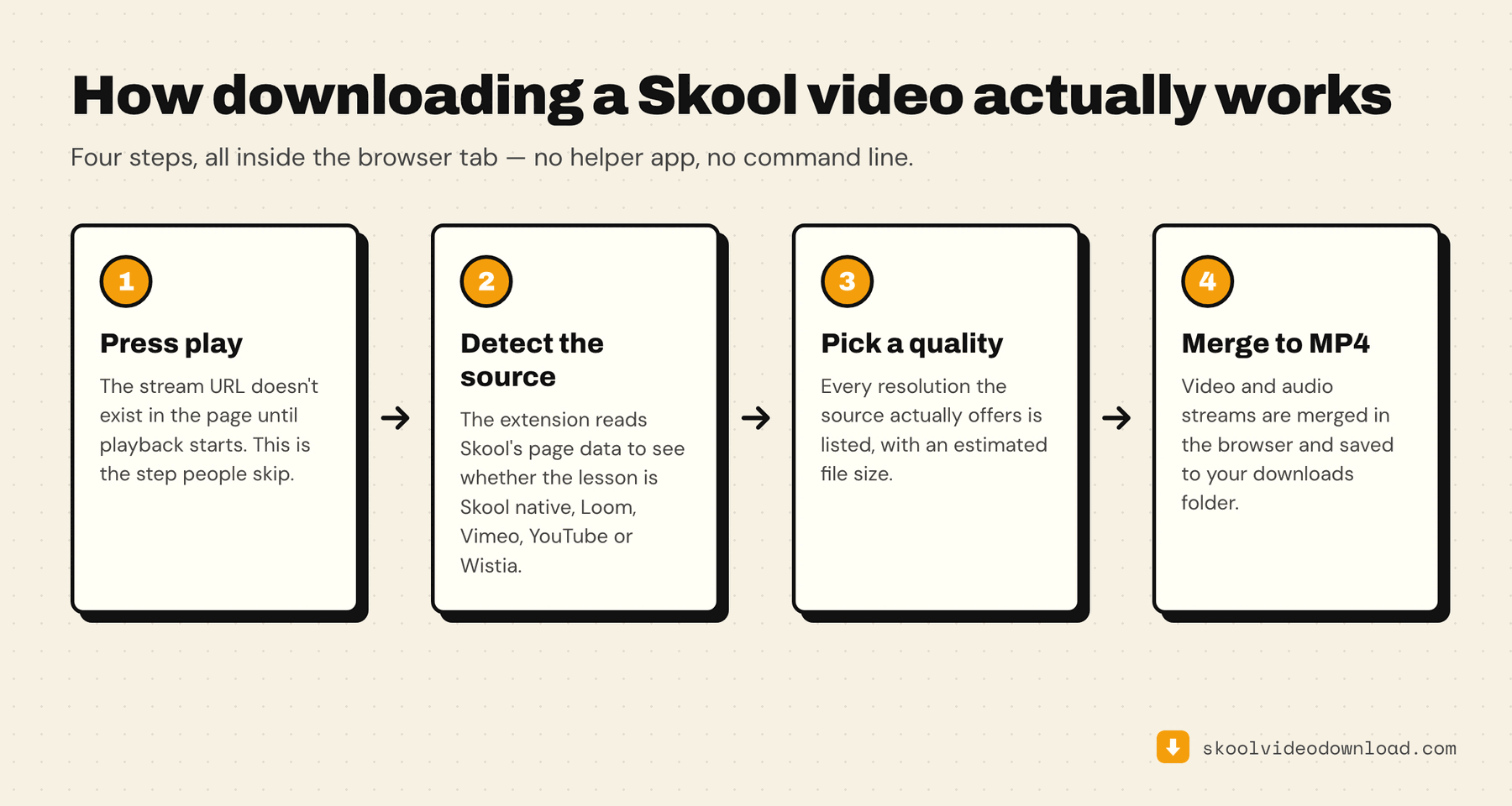
Add Skool Video Downloader from the Chrome Web Store and pin it to your browser toolbar. There's no second installer, so there's no Gatekeeper dialog to click through — the extension is ready to use the moment it's installed.
Step 2 — Open the lesson and press play
Go to the Skool classroom, community post, or course module with the video. Press play first. Whether the lesson uses Skool's native player, Loom, Vimeo, YouTube, or Wistia, the video stream only loads into the page once playback actually begins.
Step 3 — Open the extension and check the quality options
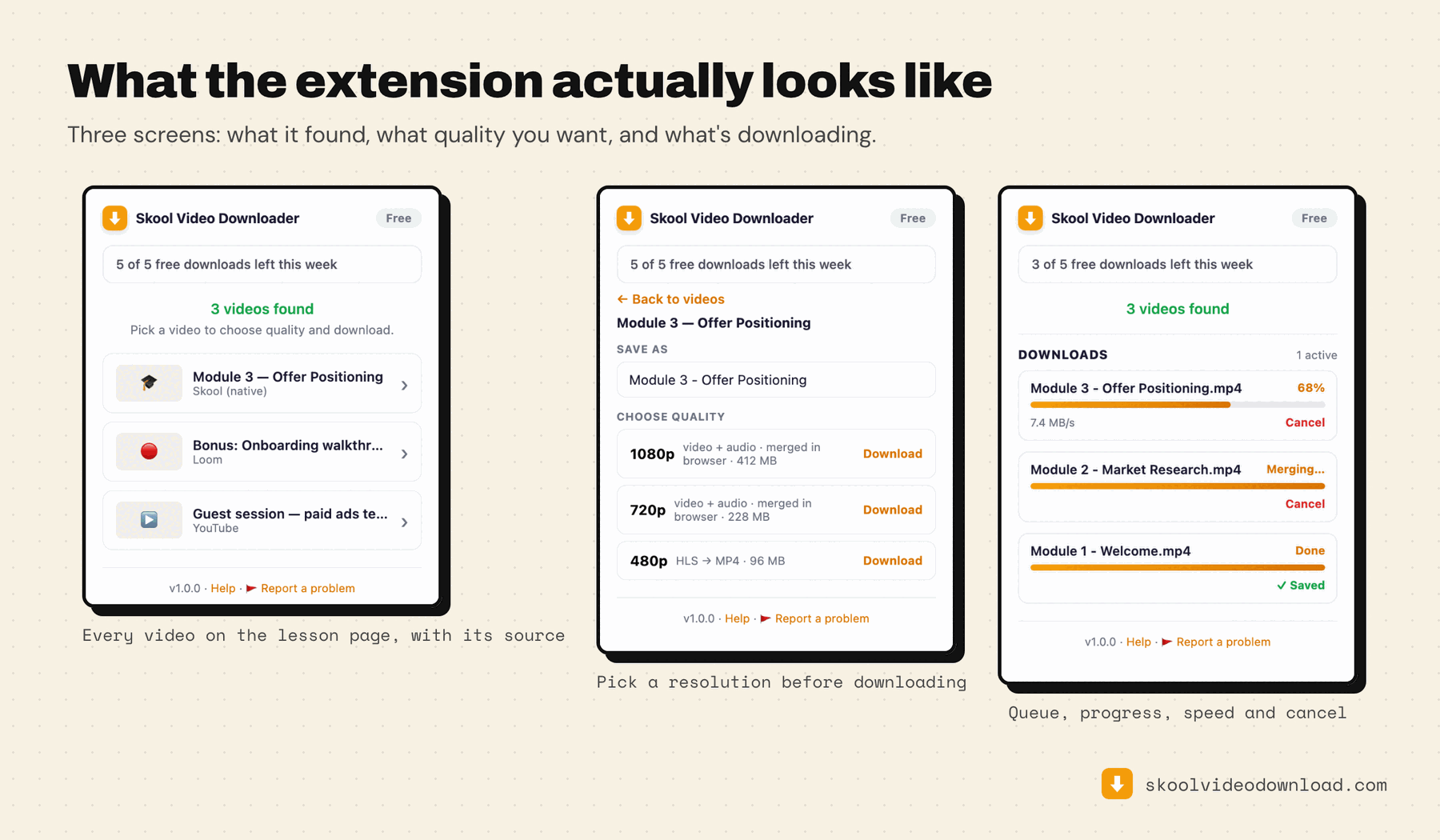
Click the extension icon in your Mac's browser toolbar. It detects which platform the embed is using and lists every resolution available for that lesson.
Step 4 — Download
Pick your quality and click Download. The extension fetches and converts the stream into a clean MP4 right in the browser tab — no separate app running in the background, no macOS security prompt to approve.
Step 5 — Find your file
The finished MP4 lands in your Downloads folder, named after the lesson title.
The Safari problem (and why it won't be fixed)
Safari uses WebKit and Apple's own extension API, which doesn't expose the low-level network hooks the extension needs to detect video streams across five different platforms. Chrome, Edge, Brave, and Opera all use Chromium's extension API, which does support this. It's an architectural limitation of Safari's sandboxing model, not a missing feature that will show up in a future update.
If Safari is your default browser, install Chrome or Brave just for downloading Skool videos — you don't need to switch permanently.
Queueing multiple downloads on Mac
You can queue as many downloads as you like — each gets its own progress bar, speed indicator, and cancel button in the download manager panel, and they run one after another. Open a few lesson tabs, press play on each, and add them all to the queue without waiting for one to finish before starting the next.
Common Mac-specific issues
"No video detected even after pressing play." Make sure you're on the actual lesson page, not a course overview or dashboard that just links to lessons. Confirm the video is actually playing (not just showing a loading spinner) before opening the extension.
"Only low resolutions are showing up." That reflects what the creator actually uploaded for that lesson — the extension shows real available quality, not what Skool's player might auto-select.
"It worked on one lesson, not the next." Different lessons often use different video platforms even inside the same course — one might be a Loom recording, the next a native Skool video. The extension detects the platform per lesson automatically; just press play and reopen the extension on the new one.
"A member-only lesson isn't loading." As long as you're logged into Skool in the same browser and already have access, the extension uses your existing session. It can't unlock content you don't have permission to view.