How to Download YouTube Videos From Skool Lessons (2026 Fix)
YouTube now blocks video downloads from every browser extension, including this one. Here's the one free copy-paste command that still works for YouTube embeds inside Skool lessons.
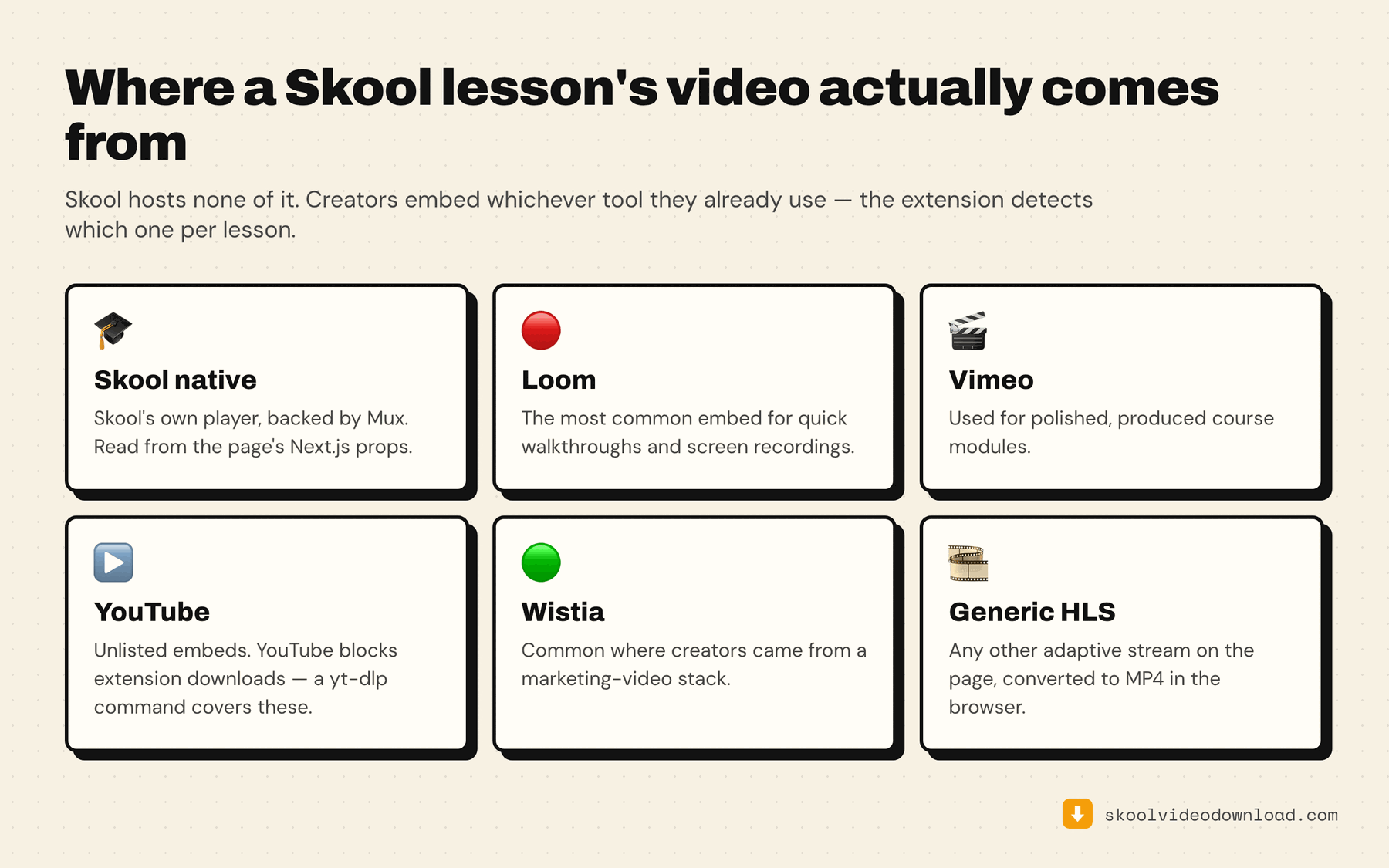
If you're trying to download a YouTube video from a Skool lesson, the rules changed in 2026 — and not because of anything this extension does. Skool Video Downloader handles Skool's native (Mux) player plus Loom, Vimeo, and Wistia embeds entirely inside the browser tab — no separate tools, no terminal. YouTube is the one exception, and it isn't specific to this extension: in 2025–26 YouTube rolled out server-side protection that cuts off any video stream requested by a browser extension after a few hundred kilobytes. Every downloader extension hit this at the same time, not just ours.
The fix is a single free command that still works, because it doesn't run inside the browser at all.
Why the extension can't just grab it
Every other platform this extension supports — Skool native, Loom, Vimeo, Wistia — serves video the same way a browser tab is allowed to fetch it: adaptive streaming chunks that the extension can intercept and reassemble. YouTube used to work the same way. The SABR protection change means YouTube now specifically detects extension-initiated requests and throttles them to nothing after the first few hundred kilobytes, regardless of which extension is asking. There's no workaround for that inside a browser extension — the block happens at YouTube's server, not in any code running on your machine.
The one approach that still works is yt-dlp, the open-source tool most download services are built on, running as a real program on your computer rather than inside a browser tab.
When you'll actually hit this
Open the extension on a Skool lesson. If the embedded video is YouTube, the extension recognizes it and shows a guide screen instead of a quality picker — it won't try and silently fail, it tells you up front and links straight to the command below. Everything else in a mixed-platform course (Skool native, Loom, Vimeo, Wistia) still downloads normally through the extension itself.
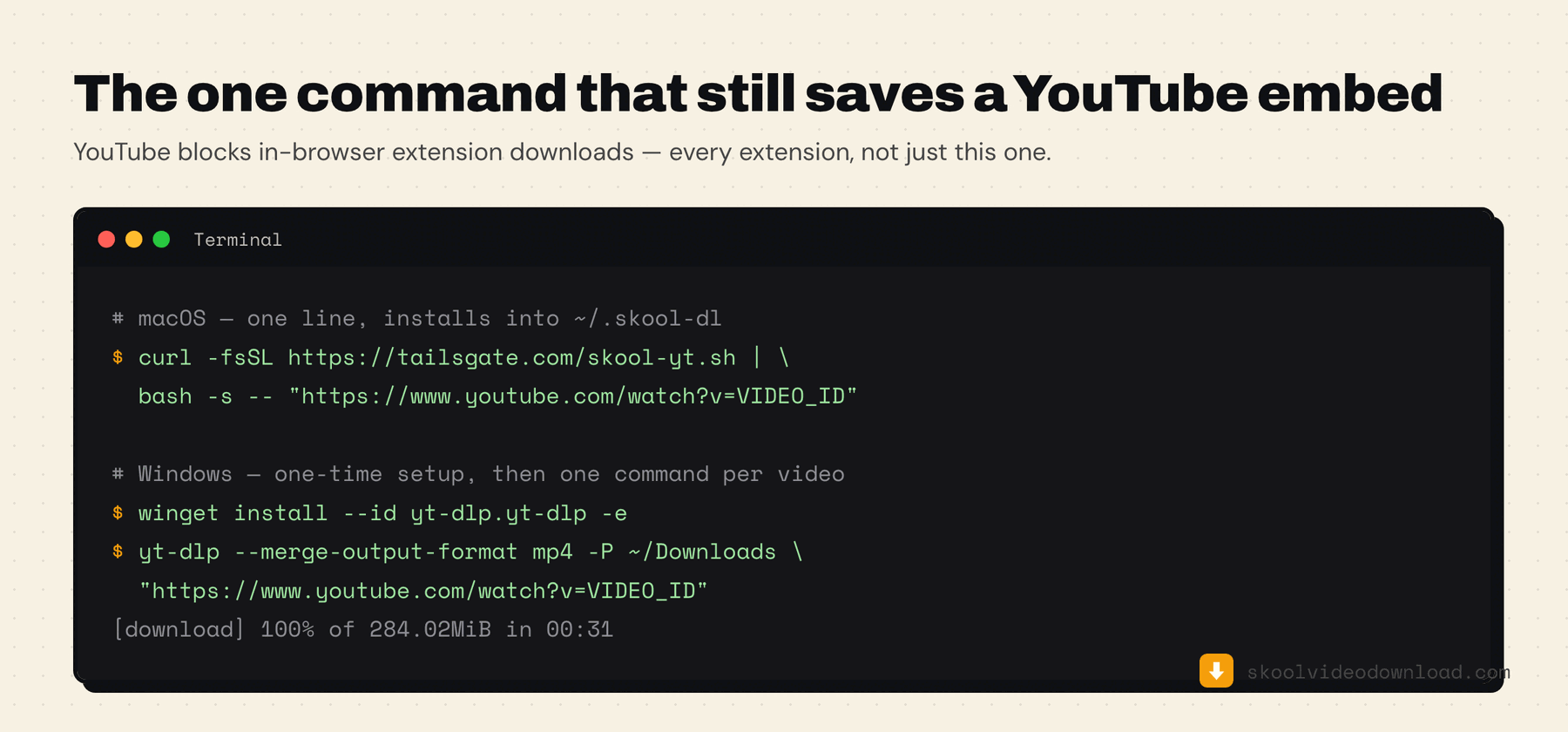
The command
The extension's YouTube screen pre-fills this command with the exact video URL for you — open it from the popup and you can skip finding the link yourself.
Mac (Terminal):
curl -fsSL https://tailsgate.com/skool-yt.sh | bash -s -- "https://www.youtube.com/watch?v=VIDEO_ID"
This installs yt-dlp and ffmpeg into one private folder (~/.skool-dl) in your home directory — no admin password, no system-wide changes, and the script itself is readable at tailsgate.com/skool-yt.sh before you run it. Deleting that one folder removes everything.
Windows (PowerShell), one-time setup:
winget install --id yt-dlp.yt-dlp -e
winget install --id Gyan.FFmpeg -e
Close and reopen PowerShell, then for every video:
yt-dlp -f "bv*[vcodec^=avc1]+ba[ext=m4a]/bv*+ba/b" --merge-output-format mp4 -P ~/Downloads "https://www.youtube.com/watch?v=VIDEO_ID"
Either way, the setup happens once — after that, the same command downloads any YouTube video in seconds, just swap in the new link.
How to tell whether a Skool lesson is a YouTube embed
You don't have to guess. There are three quick tells, in order of effort:
- Open the extension. If the lesson is a YouTube embed, the popup shows the YouTube handoff screen instead of a quality picker, with the video's link already filled into the command. That's the whole check.
- Look at the player. YouTube embeds keep YouTube's own chrome — the red play button, a "Watch on YouTube" link in the corner, and the channel avatar on hover. Skool's native player, Loom, Vimeo and Wistia all look visibly different.
- Right-click the video. A YouTube embed offers "Copy video URL" and "Copy embed code" in its own context menu. Nothing else on Skool does.
For the mechanics of downloading everything that isn't a YouTube embed, see the step-by-step guide to downloading Skool course videos; if a non-YouTube lesson isn't being detected at all, work through the troubleshooting list.
Creators often mix sources inside one classroom — a module recorded in Loom, a guest session pulled in from YouTube, the main lessons on Skool's native player. So it's normal for most of a course to download straight through the extension and one or two lessons to need the command below.
Troubleshooting the command
yt-dlp: command not found (or not recognized on Windows). The install finished but your shell hasn't picked it up yet. Close the terminal or PowerShell window completely and open a new one — PATH is only read at startup.
"Sign in to confirm you're not a bot". YouTube sometimes gates a specific video behind a session check. Passing your browser's cookies fixes it: add --cookies-from-browser chrome to the command (swap in edge, brave or firefox as appropriate).
The download works but there's no sound, or the file won't play. That's ffmpeg missing — yt-dlp downloaded the video and audio streams but had nothing to merge them with. Install it (brew install ffmpeg on macOS, winget install --id Gyan.FFmpeg -e on Windows) and rerun the same command.
It's slow. yt-dlp throttles itself on some videos. --concurrent-fragments 4 usually speeds it up considerably on long lessons.
The video is a private or members-only YouTube upload. The same --cookies-from-browser flag applies — yt-dlp then uses the YouTube session you're already signed into, the same way the extension uses your Skool session.
Does this count against my weekly downloads?
No. YouTube downloads through this command are completely free and separate from the extension's 5-per-week allowance, because they don't go through the extension at all.
Prefer a point-and-click app instead of the terminal?
If you'd rather learn yt-dlp properly, the manual yt-dlp guide for Skool's native player covers the same tool applied to the rest of a course.
Stacher is a free Mac and Windows app that wraps the same yt-dlp engine in a normal interface — paste the YouTube link, hit download, no command line involved.