Free Skool Video Downloader Options Compared (2026)
A practical comparison of the ways to save Skool course videos in 2026 — a purpose-built browser extension, manual command-line tools, and screen recording — what each costs, what it covers, and which is worth your time.
Skool lessons don't come from one video source — a single course might mix Skool's own native player with embedded Loom, Vimeo, YouTube, and Wistia videos, all in the same classroom. That mix is exactly why "just right-click and save" never works, and why a general download tool doesn't work well either: it has to correctly identify five different platforms per lesson, not just one. This article compares every free Skool video downloader option that actually works in 2026 — a purpose-built browser extension, the command line, and screen recording — and what each one really costs you in time and quality.
The options
1. A purpose-built Skool browser extension (this site)
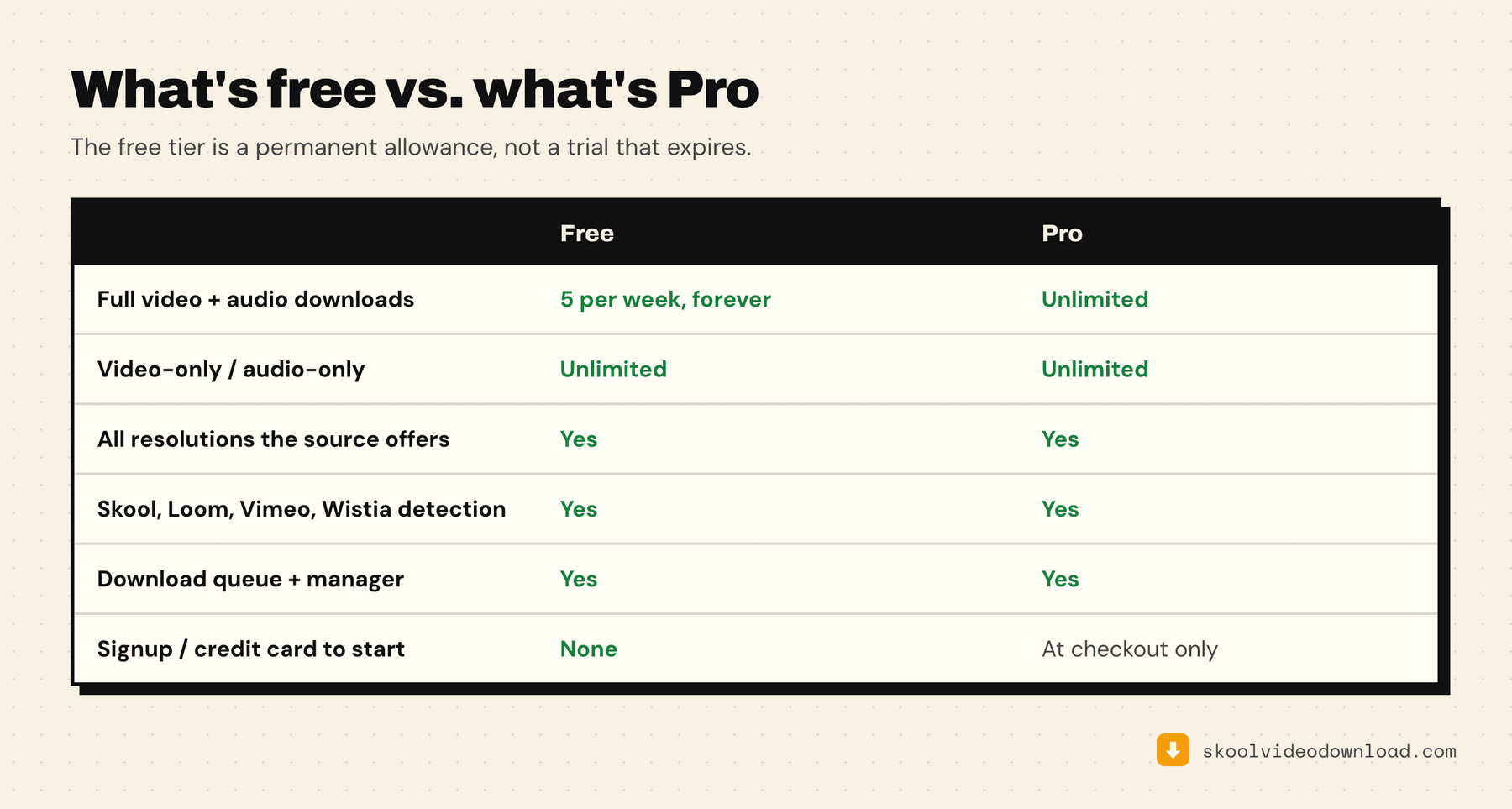
Free tier: 5 downloads per week, forever, no signup, no credit card.
How it works: Reads Skool's own page data to identify which platform a lesson is actually using — Skool native (Mux), Loom, Vimeo, YouTube, or Wistia — then fetches the matching stream and converts it to MP4 entirely inside the browser tab. No separate helper app to install. YouTube embeds are the exception and route to a free command instead, since YouTube blocks every extension.
Setup: Install from the Chrome Web Store, pin the extension, done. No account creation, no license key for the free tier.
Paid option: Pro at $9.99/month (or a lifetime one-time option) removes the weekly cap.
Best for: Anyone who wants a clean, no-signup way to grab lessons regardless of which video platform a given creator happens to use, without touching a terminal.
2. yt-dlp (manual, command line)
Free tier: Completely free, unlimited, no account needed.
Full walkthrough: how to download Skool videos with yt-dlp, step by step.
How it works: yt-dlp is the open-source command-line tool most browser-based downloaders rely on internally for supported sites (it has broad support for YouTube, Vimeo, and many others). For a Skool-hosted video specifically, you'd need to locate the underlying stream URL yourself — yt-dlp doesn't understand Skool's page structure the way a purpose-built extension does, so this route works better for lessons that are plain YouTube or Vimeo embeds than for Skool's own native player.
The catch: Requires comfort with a terminal, manually extracting cookies and stream URLs, and troubleshooting when a site's structure changes.
Best for: Developers and power users downloading YouTube- or Vimeo-embedded lessons specifically, or anyone hitting a weekly cap on other tools who's willing to do the extra manual work.
3. Screen recording (OBS, QuickTime, Bandicam, etc.)
Free tier: Most screen recorders are free or have generous free tiers.
The problem: Screen recording isn't a download — it's a real-time capture of your display. You sit through the video at 1x playback speed, the recording quality is capped by whatever the player happened to be rendering, and every re-encoding pass loses fidelity versus the source. A four-hour course takes four hours to "save" and produces a file that's often larger and lower quality than the original.
Best for: Live sessions with no saved recording, or DRM-protected content where no other method works. For pre-recorded course lessons — most of what people actually want — it's the least efficient method available.
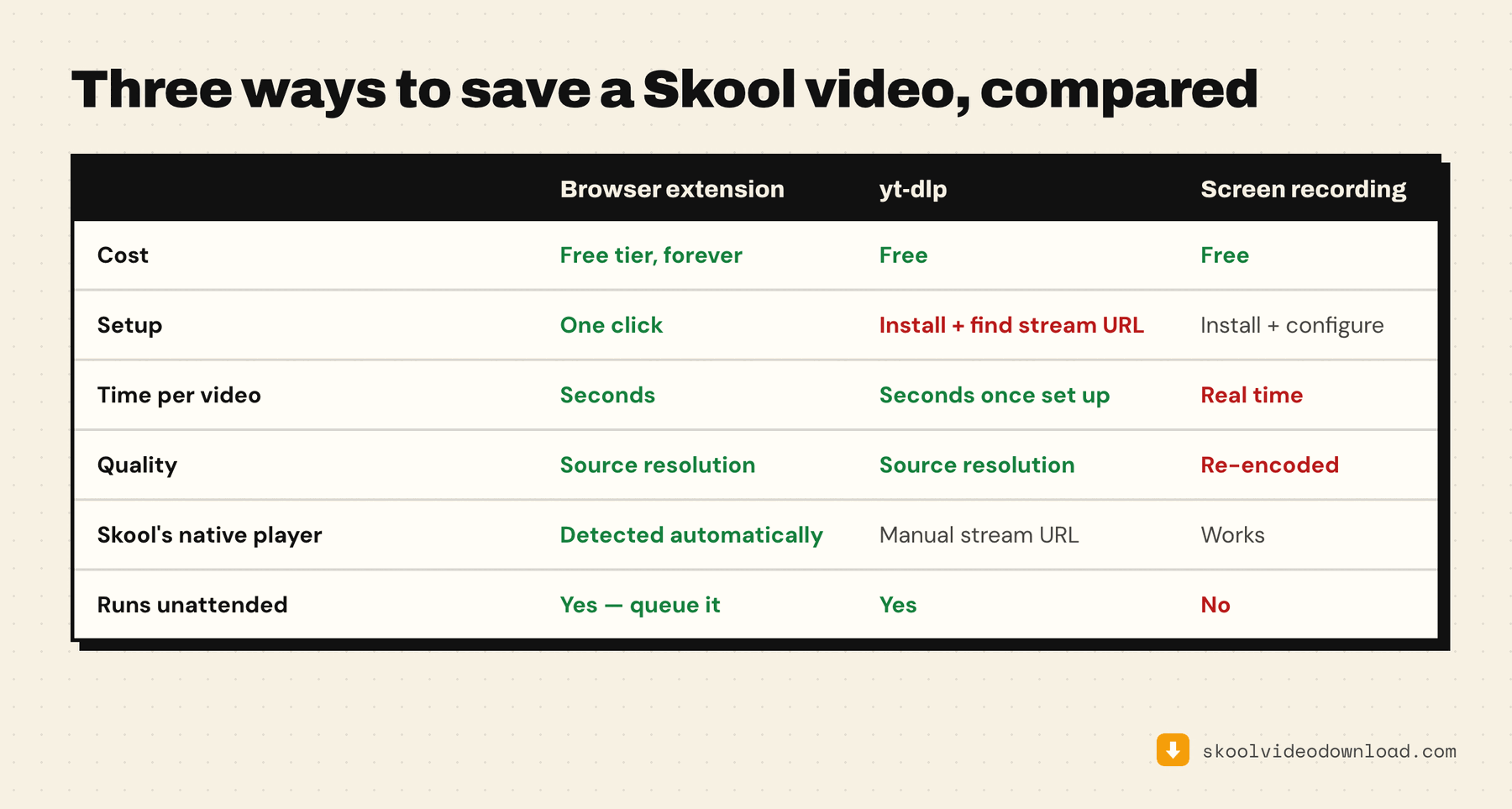
Side-by-side comparison
| Purpose-built extension | yt-dlp | Screen recording | |
|---|---|---|---|
| Actually free | Yes — 5/week forever | Yes, unlimited | Yes |
| Handles Skool native player | Yes | No — needs manual stream extraction | Yes (any source) |
| Handles Loom/Vimeo/YouTube/Wistia embeds | Yes, auto-detected | Yes, if manually pointed at the right URL | Yes (any source) |
| Source quality | Original stream | Original stream | Re-encoded |
| Speed | Fast (async fetch) | Fast | Real-time |
| Setup difficulty | Low | High | Low |
| No terminal needed | Yes | No | Yes |
| Batch/queue | Unlimited queue, runs in order | Manual, one at a time | One at a time |
Which one should you use?
If you want zero setup and full platform coverage: the purpose-built extension. It's the only option here that automatically figures out whether a given Skool lesson is native, Loom, Vimeo, YouTube, or Wistia, without you having to identify the source yourself.
If you're comfortable with a terminal and mostly hitting YouTube- or Vimeo-embedded lessons: yt-dlp gives you unlimited downloads at the cost of manual setup per video.
If you're considering screen recording: only for live sessions or DRM-protected content where nothing else works. For standard lessons, it's slower and lower quality than just downloading the source — the full side-by-side on recording vs downloading has the numbers.
If "free" is the whole question: read what free actually means across these tools first. One of them resets weekly and has an unlimited path around the cap; the others are trials with a hard stop. There's also a direct head-to-head against the main paid competitor if you're choosing between the two extensions specifically.
Not sure where to start at all? The step-by-step guide to downloading a Skool course video is the shortest path from nothing to a file on your disk.