Can You Download Skool Videos on iPhone or Mobile? The Honest Answer
Skool Video Downloader doesn't work on iPhone or Android — here's the real technical reason why, and what to actually do if you want your downloaded course videos on your phone.
Short answer: no, not directly. Skool Video Downloader — and every other browser-extension-based Skool downloader — only works on desktop Chrome, Edge, Brave, or Opera. There's no iPhone or Android version, and there isn't going to be one that works the same way, for reasons that are worth actually understanding rather than just accepting as a limitation.
Why this isn't a "we haven't built it yet" problem
This comes down to a restriction Apple enforces at the operating system level, not a gap in development priorities.
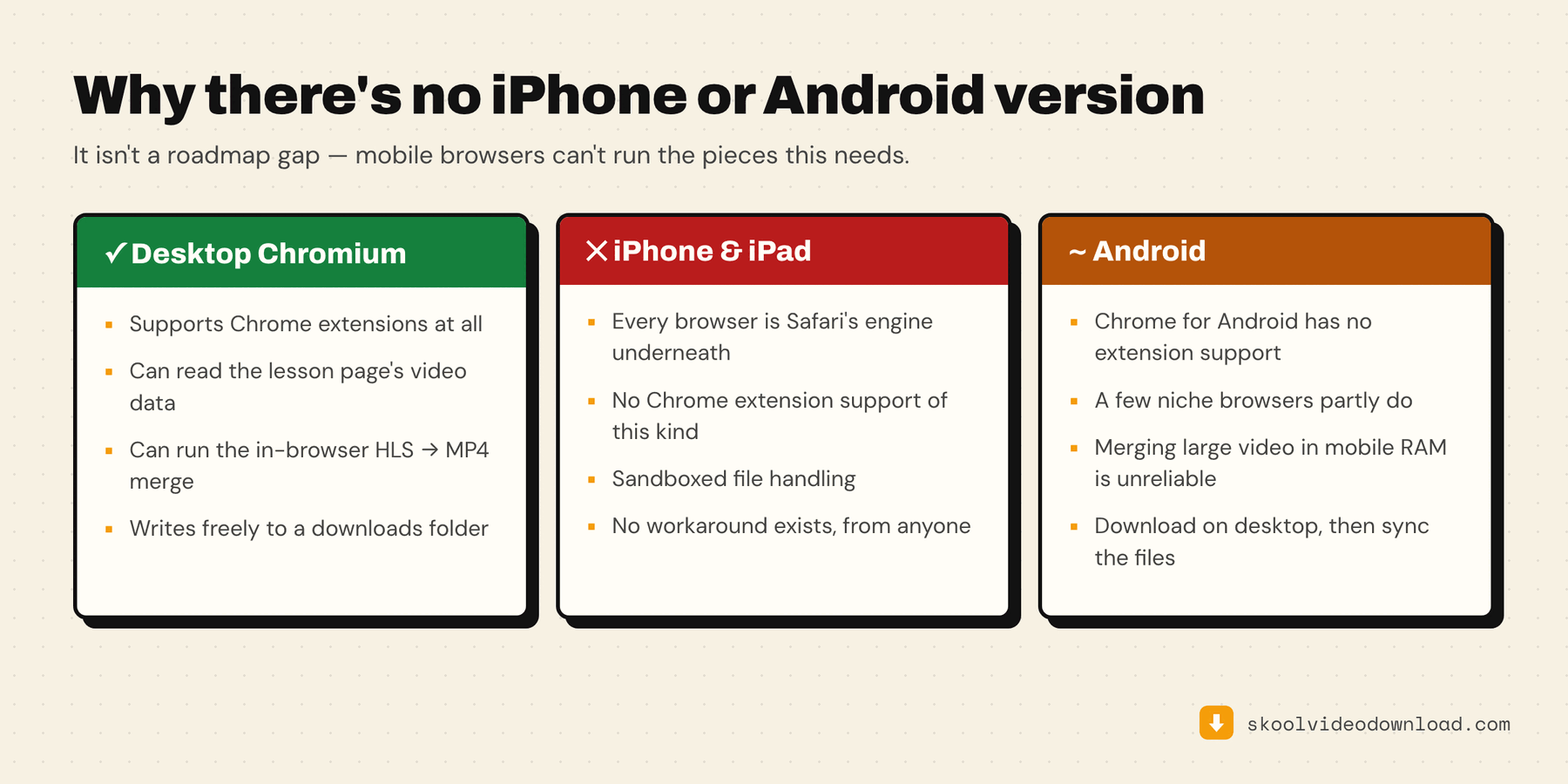
On iOS, Safari is the only browser engine allowed. Every browser on the App Store — Chrome, Firefox, Edge, whatever you download — is required to run on Apple's WebKit engine under the hood, not its own. "Chrome for iOS" is a WebKit browser wearing Chrome's interface, not the same Chrome that runs the extension you'd install on a Mac or PC.
Safari's extension model isn't the same as desktop Chrome's. Desktop Chrome extensions (including Skool Video Downloader) use Chrome's Manifest V3 platform — APIs for intercepting network requests, managing downloads, running background scripts, and more. Safari on iOS supports a much narrower category called Safari Web Extensions, mostly built for content blocking and simple page modifications. There's no equivalent to the download-management and network-interception APIs the extension actually depends on.
This applies to every Chromium-based browser on iPhone, not just Safari. Because Apple mandates WebKit for all iOS browsers, installing Chrome, Brave, or Edge from the iOS App Store doesn't get you real Chrome extension support either — they're all constrained the same way Safari is.
Android is a different story technically (Chrome for Android does exist as real Chrome), but mobile Chrome on Android still doesn't support installing desktop-style extensions at all — that's an Android-Chrome product decision, not an Apple-specific one, and it's been true for years across the whole mobile extension landscape.
What to actually do
Download on desktop, then transfer. This is the practical path almost everyone ends up using:
- Download the lesson on your Mac or PC with the extension as normal — step-by-step for Mac, for Windows, or the general walkthrough.
- Transfer the MP4 to your phone — AirDrop (Mac to iPhone), a cloud drive folder (Google Drive, Dropbox, iCloud Drive), or a cable sync.
- Open it in your phone's Photos or Files app for fully offline playback — no signal, no data usage, no buffering.
This takes a couple of extra minutes per file but gives you a real offline copy on your phone afterward, which a mobile extension couldn't have given you anyway (mobile Safari doesn't have a "downloads folder" the way desktop does).
If you're doing this for a whole course rather than one lesson, batch the desktop downloads first — the whole-course backup guide covers queueing and storage planning.
Use Skool's own app for online (not offline) mobile viewing. If you just want to watch a lesson on your phone while you have signal, Skool's official app handles that natively — no extension needed at all for that use case. The desktop-download-then-transfer path is specifically for people who want a true offline file on their device.
Getting the files onto an iPhone, step by step
The transfer is the part people ask about most, so here it is concretely. All three routes end with a real file on the device that plays with no signal.
- AirDrop (Mac → iPhone, fastest). Select the MP4s in Finder, right-click → Share → AirDrop, pick your phone. They land in Files, and you can move them into Photos if you'd rather they sit in your camera roll.
- iCloud Drive or Google Drive (works from Windows too). Drop the MP4s into a folder in the desktop app, then open that folder in the Files app on your phone and tap the download arrow on each file. That arrow matters — without it the file streams rather than living on the device, which defeats the point on a flight.
- A cable and the Files app. Plug the phone in, open it in Finder (macOS) or the Apple Devices app (Windows), and drag the MP4s into the VLC or Files section. Useful when you're moving a whole course at once and don't want it going through a cloud account.
For playback, the built-in Files player handles standard MP4 fine. VLC for Mobile is worth installing anyway if you're archiving a lot of course video — it handles playback speed, remembers your position per file, and doesn't care what container the video is in.
What about iPad and Chromebook?
iPad is the same answer as iPhone, for the same reason: iPadOS enforces the same WebKit rule, so even iPad browsers that look like desktop Chrome aren't running the extension platform.
Chromebooks are different, and they work. ChromeOS runs real desktop Chrome, so Skool Video Downloader installs and behaves exactly as it does on a Mac or PC — including the in-browser HLS merge. If a Chromebook is the only non-phone device you have, that's your download machine.