How to Download an Entire Skool Course for Offline Viewing
How to save a full Skool course — every module, every lesson across Skool native, Loom, Vimeo, YouTube, and Wistia — as MP4 files on your computer. Batch downloading, free tier strategy, and storage planning.
Downloading one Skool lesson is quick. Downloading a whole course — 20, 40, or more lessons, possibly spread across Skool's native player, a few Loom recordings, and a couple of YouTube embeds — takes a bit of planning. This guide covers the batch workflow, how far the free tier goes, and how to keep a large archive organized.
Why back up an entire course
- Community access isn't permanent. Skool communities shut down, creators move platforms, or memberships lapse. A local copy is the only guarantee you'll still have the material.
- Offline study. Flights, commutes, spotty Wi-Fi — a downloaded course works anywhere.
- Mixed-platform courses are fragile. A course built from Skool native videos plus Loom and YouTube embeds depends on all three services staying up and staying accessible. Downloading collapses that into one thing you actually control.
- Data caps. Re-streaming 1080p video for review burns through mobile data fast. A local file doesn't.
The batch download workflow
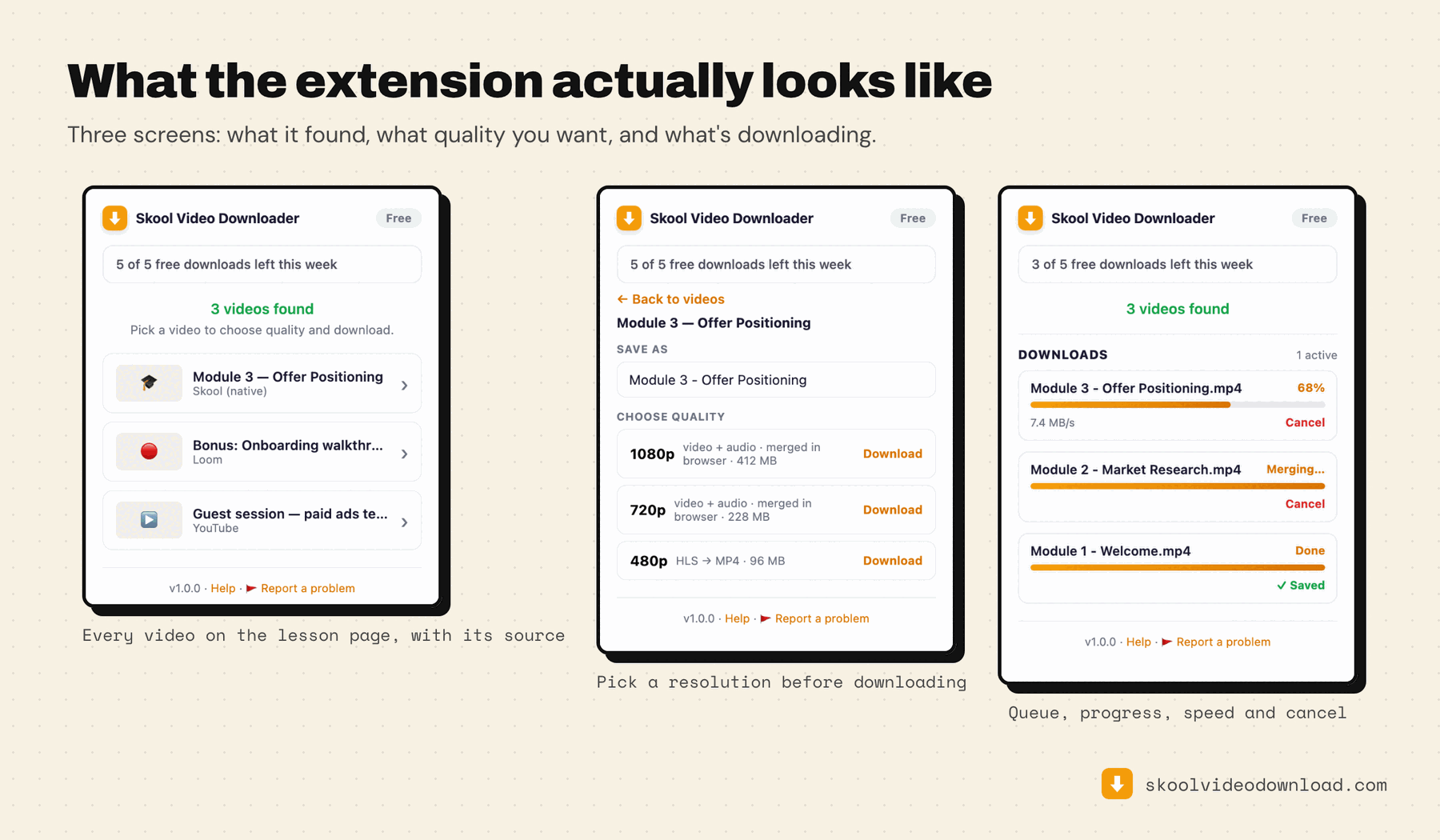
There's no single "download the whole course" button, but you can queue up a whole module in one pass and let it work through unattended.
Open a few lesson tabs at once
You can queue as many lessons as you like — they run one after another, so a burst of requests never trips Skool's rate limiting. Open a few tabs, each on a different lesson in the course.
Press play in each tab before opening the extension
This is the step that trips people up in batch mode. No matter which platform a lesson uses — Skool native, Loom, Vimeo, YouTube, or Wistia — the stream data only loads once playback starts. Press play in each tab, let it run a couple of seconds, then move to the next.
Scan and queue each one
Open the extension in each tab, confirm the detected quality, and add it to the queue. The queue works through them in order while you load more tabs in the background and press play on those next — by the time it drains, the next batch is already primed to scan.
Files land pre-organized
Downloads are automatically named after the lesson title, so a well-named course ("Module 4 – Client Onboarding," "Week 2 – Ad Copy Review") turns your downloads folder into a self-organizing archive without any manual renaming.
Planning around the free tier
The free tier gives you 5 merged downloads per week, forever, no signup or credit card. For a 30-lesson course:
- 5/week = 6 weeks to get through the whole course on free
- Queueing several at once doesn't change the weekly total — it just means you don't have to sit and start each one
Two ways around that if six weeks is too slow. Pro removes the cap entirely and lets you finish a large backup in one sitting. Or, at no cost, download each lesson's video and audio as separate files — those are unlimited and never spend a credit — and merge them locally afterwards. The free route is spelled out in full here, including the one-line ffmpeg command. For 30 lessons that's 30 manual merges, which is exactly the trade Pro exists to remove.
Storage planning
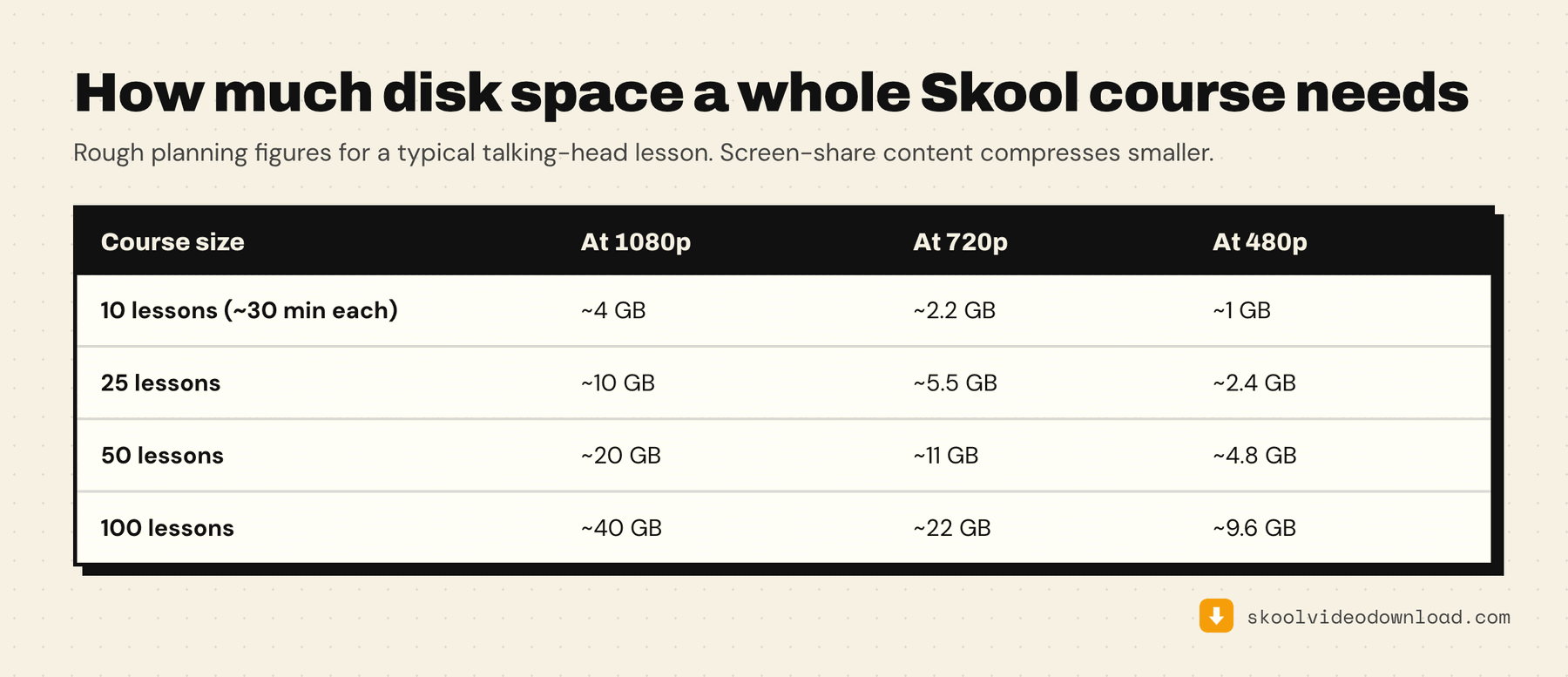
Actual file size depends on resolution, length, and which platform sourced the video, but rough estimates:
| Resolution | Typical storage per hour |
|---|---|
| 360p | ~225 MB |
| 720p | ~1.1 GB |
| 1080p | ~2.25 GB |
A 20-lesson course at 45 minutes each, mostly 720p: 20 × 45min × 1.1 GB/hr ≈ 16 GB. A 40-lesson course at 1080p, 30 minutes each: 40 × 0.5hr × 2.25 GB/hr ≈ 45 GB. Anything past 20 GB, plan for an external drive rather than a laptop SSD.
Choosing quality for a whole-course backup
- Talking-head lessons and voice-over slides: 720p is fine — the visual difference from 1080p is negligible for a presenter talking over static slides, and you save roughly half the storage.
- Screen shares, code walkthroughs, design reviews: 1080p, so on-screen text stays readable.
- Mixed-platform courses: the extension's quality selector shows what each specific lesson actually offers, whether it's Skool native or an embedded Loom/Vimeo/YouTube/Wistia video — pick per lesson rather than assuming a blanket setting.
Downloading before access expires
If your Skool membership is time-limited, don't wait until the last week. Start the batch workflow as soon as you know access is ending, and prioritize lessons you haven't already watched — you can always rewatch a finished download later, but you can't recover a lesson you didn't save before access closes.
If a course mixes Skool native videos with third-party embeds, check the ones hosted elsewhere (Loom, Vimeo, YouTube, Wistia) first — those links can go dead independently of your Skool access if the creator later removes or unlists them.
Before committing to a 40 GB archive, it's worth reading what the honest legal position is on downloading Skool videos — personal backups are the defensible case, and that's what this workflow is for.
Keeping a large archive organized
- One folder per course, not per creator — courses sometimes move between communities.
~/Skool Courses/[Course Name]/works well. - Prefix files with a lesson number if titles don't already include one, so they sort correctly in any file browser.
- Keep a small text file with the course URL and your access status in the folder — useful if you ever need to revisit it.
- External SSD over cloud sync for video — syncing 30–40 GB to iCloud or Google Drive costs time and often money. A 1TB external SSD is faster and has no monthly fee.