How to Download Skool Videos Manually with yt-dlp (No Extension)
Step-by-step guide to downloading Skool's native (Mux) course videos using yt-dlp directly from the command line — no browser extension, full control, completely free.
Every Skool downloader extension — including this one — is, under the hood, doing something you can do yourself: finding the video stream URL and handing it to a tool that fetches and merges it. That tool, in almost every case, is yt-dlp, the open-source command-line downloader that's become the de facto standard for this kind of job.
If you're comfortable with a terminal, you can skip the extension entirely for lessons that use Skool's own native player. Here's exactly how.
This is for downloading content you already have legitimate access to on Skool — the same personal-backup use case an extension covers. It doesn't bypass paywalls or DRM, and it won't work on content you can't already play in your browser.
Why this works: Skool's native video infrastructure
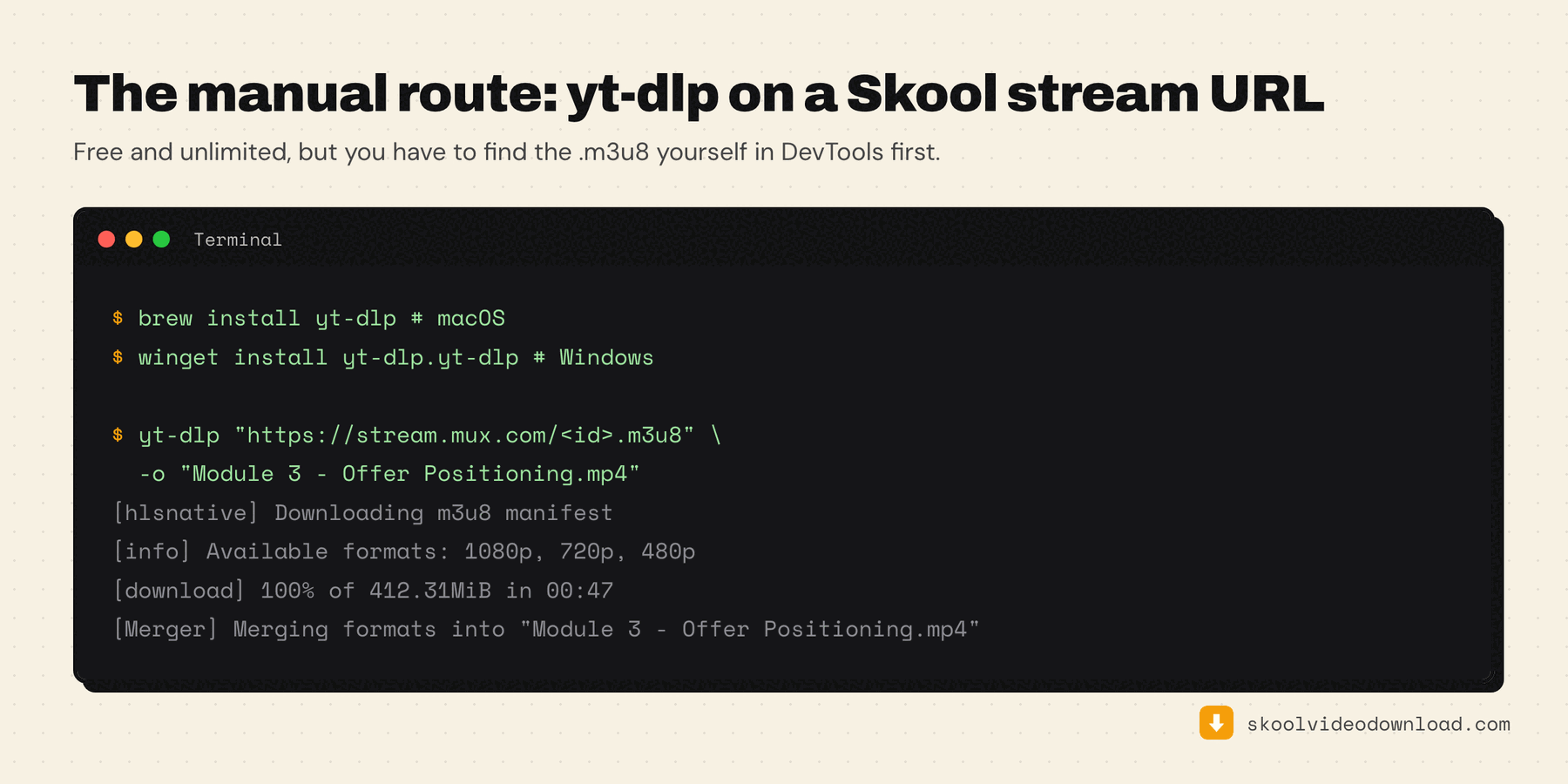
Skool's own native player streams video through Mux, a third-party video platform used by a lot of course/community sites. Mux serves video as HLS (HTTP Live Streaming) — instead of one downloadable file, the player fetches a manifest (a .m3u8 file) that lists dozens of small video/audio segment URLs, plus a short-lived access token in the query string. Right-clicking the player and choosing "Save video" doesn't work because there's no single file to save — that's exactly the gap yt-dlp is built to close.
This method is specifically for Skool's native player. If the lesson is actually an embedded Vimeo player, yt-dlp can usually download it directly from the page URL with no manual stream capture needed (yt-dlp "https://vimeo.com/..."). Loom lessons are less reliably supported by yt-dlp's built-in extractors and may need the same manual m3u8 capture described below if a direct URL doesn't work. YouTube embeds are actually simpler than the Mux workflow below — yt-dlp downloads a plain YouTube URL directly, no DevTools or manual capture needed at all. See our YouTube-specific guide for the exact one-line command.
Step 1: Install yt-dlp
Mac (Homebrew):
brew install yt-dlp
Windows:
pip install yt-dlp
(Requires Python. If you don't have it, install Python from python.org first, or use winget install yt-dlp.yt-dlp if you have winget available.)
Linux:
sudo apt install yt-dlp
# or, for the latest version:
pip install --upgrade yt-dlp
Verify it installed correctly:
yt-dlp --version
Step 2: Capture the stream URL
- Open the Skool lesson in Chrome (or any Chromium browser) and open DevTools (
F12or right-click → Inspect). - Go to the Network tab. In the filter box, type
m3u8. - Press play on the video. Nothing will appear in the Network tab until playback actually starts — Mux generates the stream URL on demand, not ahead of time.
- Within a few seconds you should see one or more requests ending in
.m3u8with a long token in the query string. Right-click the request and choose Copy → Copy link address.
That URL is your source. It's time-limited — usually valid for a fairly short window — so move on to the next step promptly rather than saving it for later.
Step 3: Download with yt-dlp
Run:
yt-dlp "PASTE_YOUR_M3U8_URL_HERE" \
  -f "bv*+ba/b" \
  --merge-output-format mp4 \
  --concurrent-fragments 8 \
  -o "lesson-name.mp4"
What each flag does:
-f "bv*+ba/b"— grab the best available video stream and best available audio stream separately, and merge them (falling back to a combined stream if separates aren't available). This is what gets you full quality instead of whatever single low-bitrate variant the player might default to.--merge-output-format mp4— output as a standard MP4 rather than yt-dlp's default container choice, so it plays everywhere.--concurrent-fragments 8— download 8 segments in parallel instead of one at a time. HLS streams are chopped into many small chunks; fetching them in parallel is the difference between a slow download and a fast one. You can push this higher (16, 24) on a fast connection, or lower it if you hit rate limiting.-o "lesson-name.mp4"— sets the output filename. Swap in whatever you want to call it.
If the download requires ffmpeg for the merge step (it usually does) and you don't have it installed:
# Mac
brew install ffmpeg

# Windows
winget install --id Gyan.FFmpeg -e

# Linux
sudo apt install ffmpeg
Common issues
"HTTP Error 403: Forbidden" — the token in your URL expired. Mux tokens are short-lived by design. Go back to Step 2, get a fresh URL, and run the command again promptly.
Download completes but there's no audio — you likely used a simpler format selector like -f best instead of -f "bv*+ba/b", which can grab a video-only stream if Skool's adaptive manifest separates video and audio tracks. Use the exact flag above.
"Requested format is not available" — run yt-dlp -F "YOUR_URL" first to list every format Mux actually offers for that video, then adjust the -f selector to match one of the listed format codes if bv*+ba/b doesn't resolve cleanly.
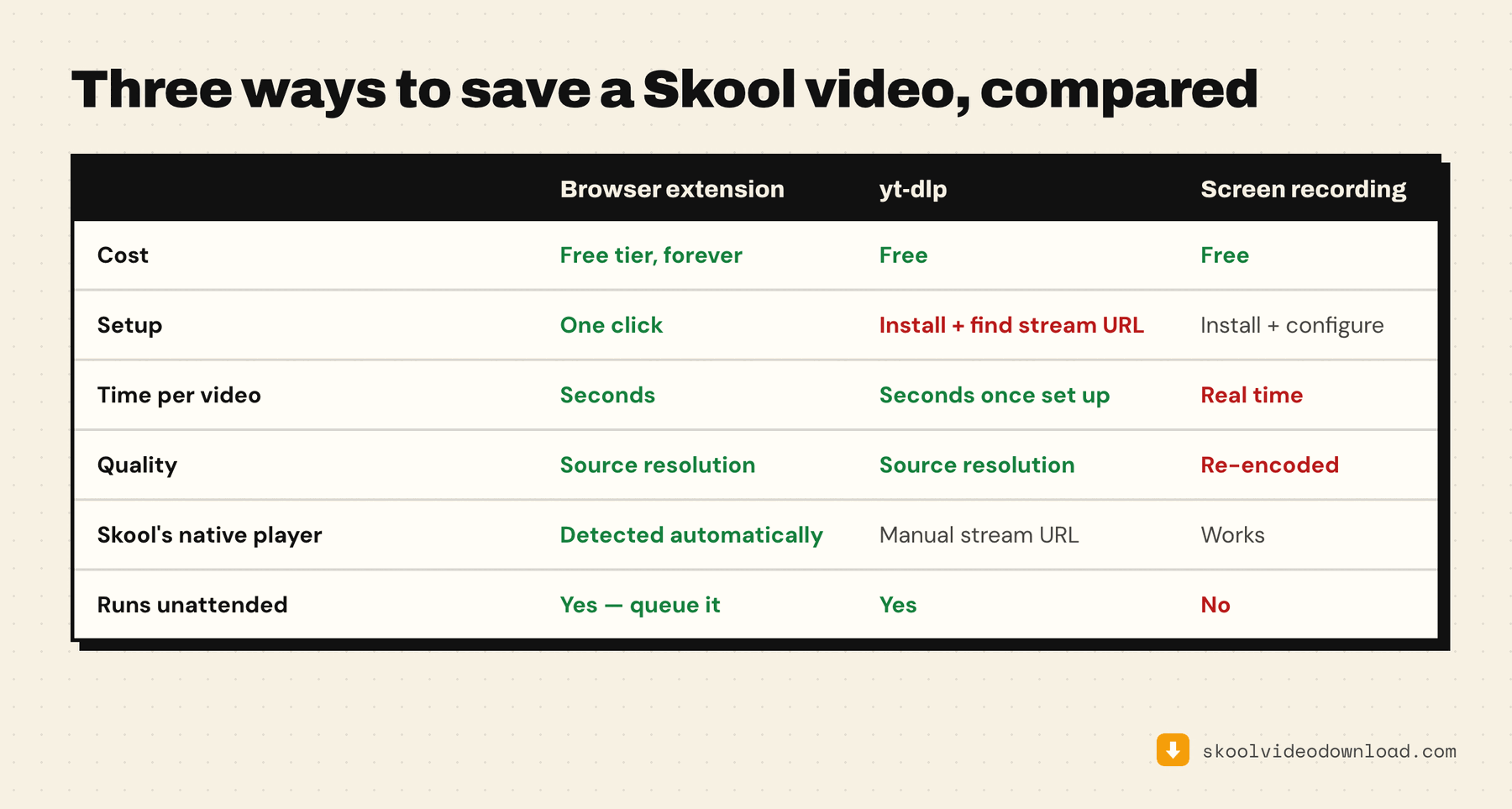
When it's worth just using the extension instead
The manual method gives you full control and zero ongoing cost, but it has real friction: DevTools every time, watching for token expiry, and no automatic platform detection if a lesson turns out to be Loom or Wistia instead of Skool native. If you're downloading lessons across a mixed-platform course, or you'd rather not open a terminal at all, Skool Video Downloader automates every step above for Skool native, Loom, Vimeo, and Wistia lessons — stream detection, quality selection, and the merge — and keeps 5 merged downloads free every week with no signup (plus an unlimited free path if you're happy to merge the tracks yourself, which is essentially what you're doing here anyway).
For the wider picture, the comparison of every free Skool downloader option puts this method next to the extension and screen recording.